PDF to Excel Converter
PDF to Excel without retyping: this page finds the tables in your PDF and rebuilds them as spreadsheet cells. Everything runs on your own device, so the file is never sent anywhere.
Converted on this device. Your files are never uploaded.
How it works
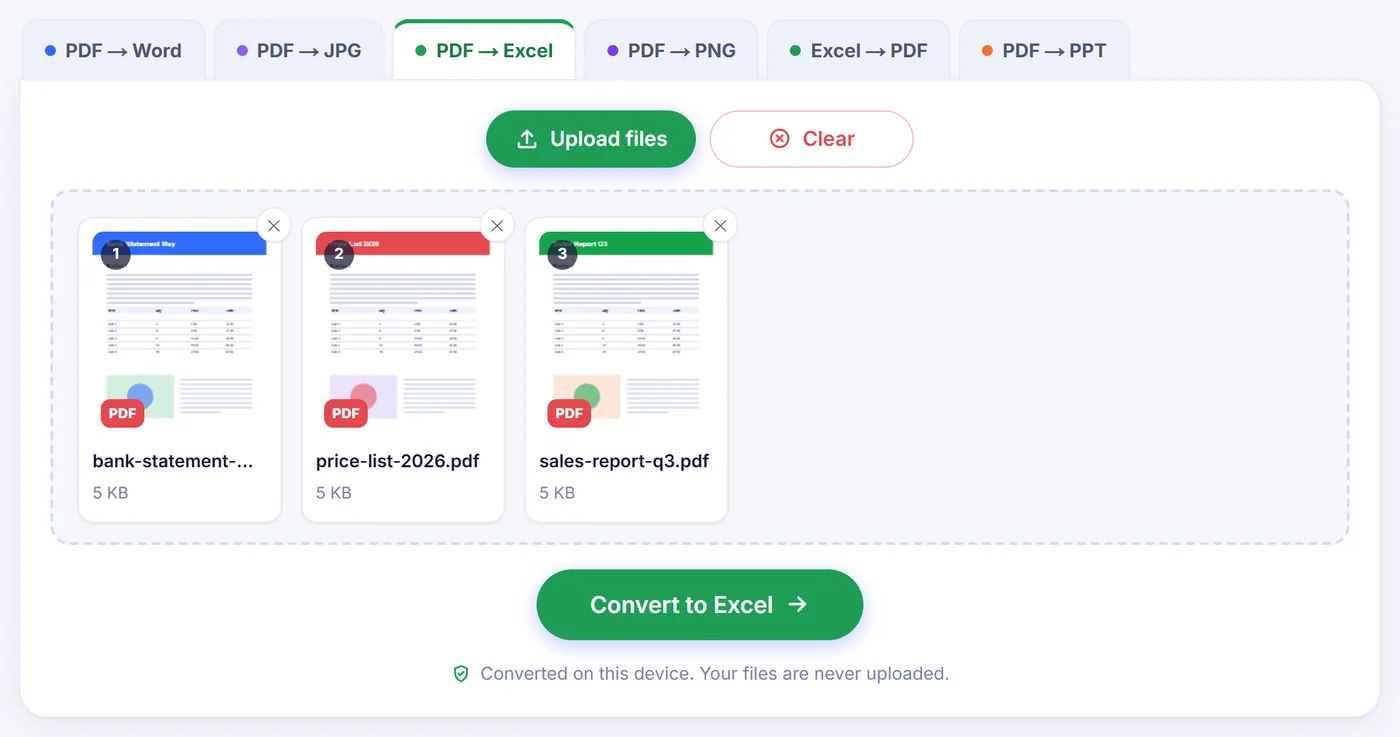
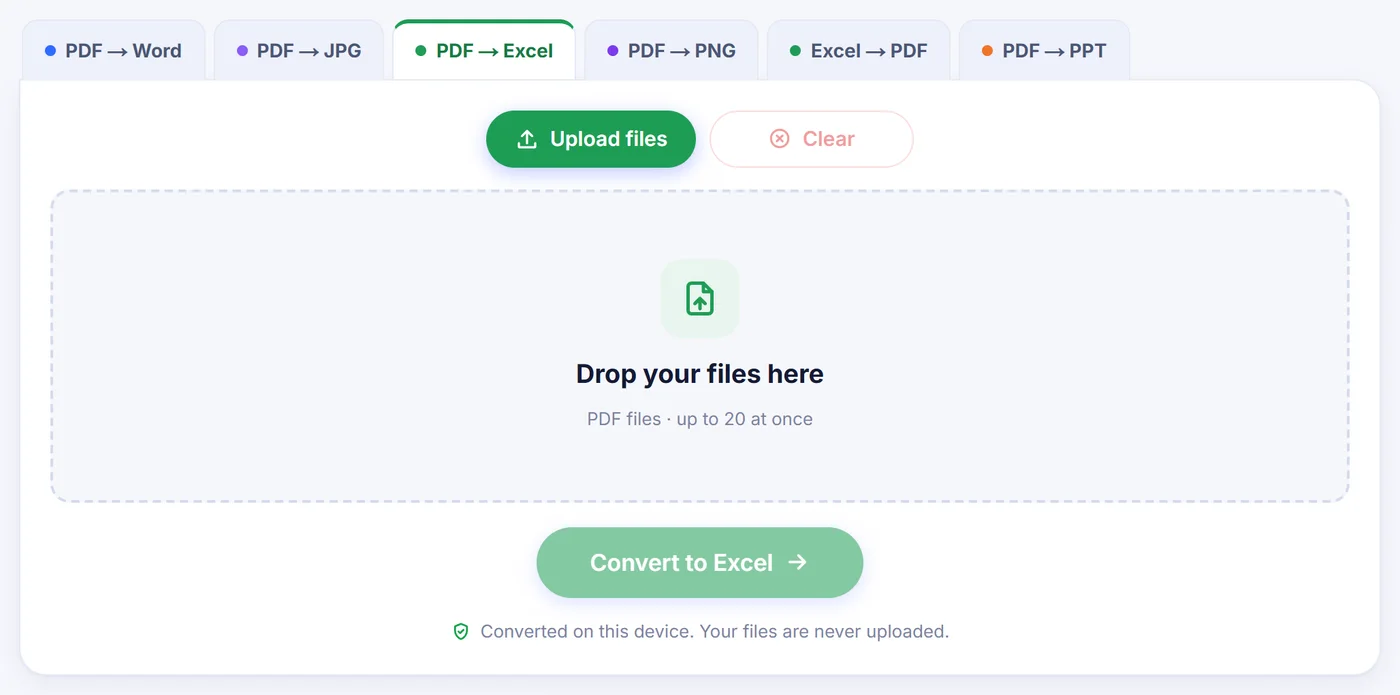
Drop in your PDF
Add one statement, invoice or report, or a batch of up to 20 PDFs at once.
Check the preview
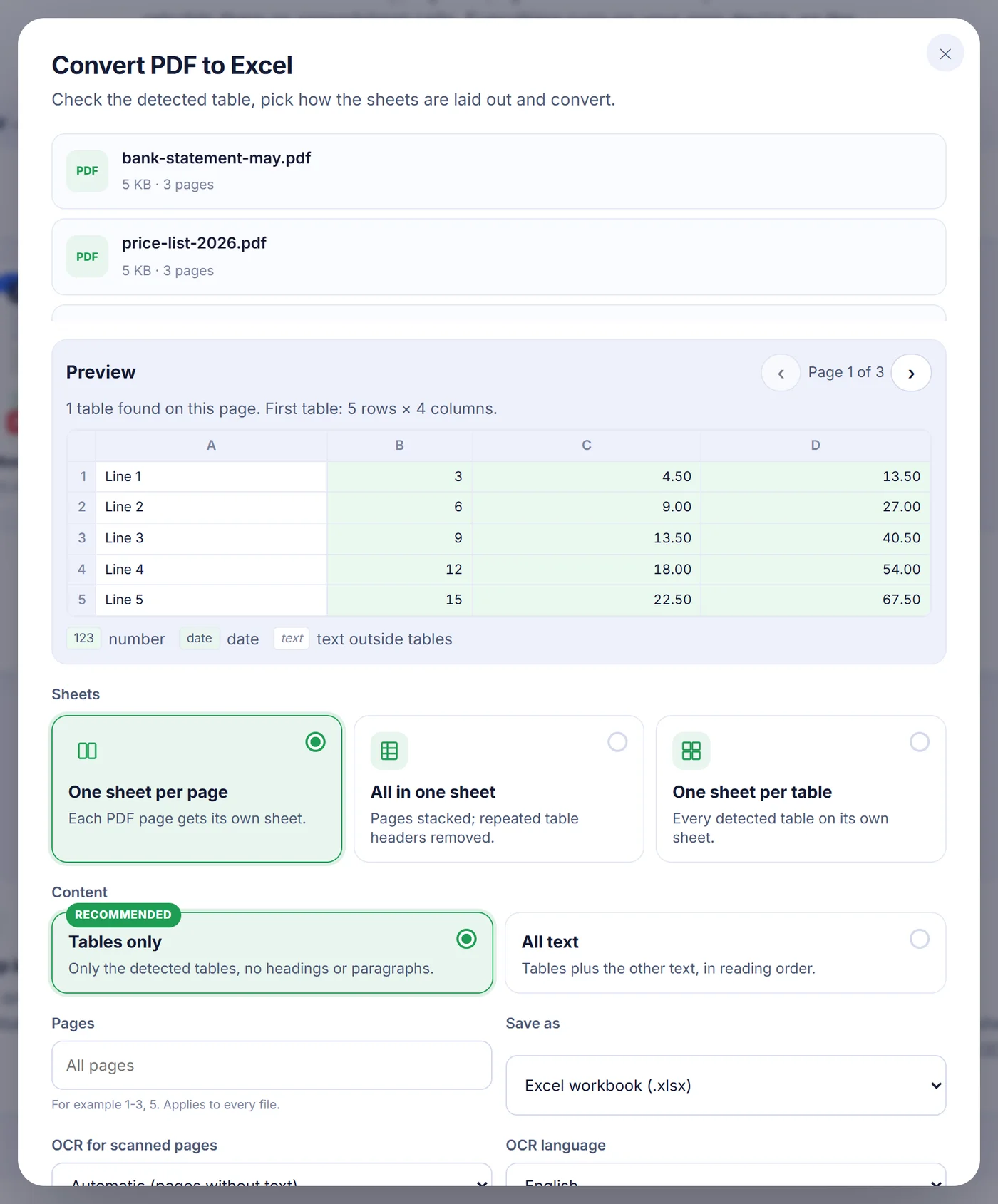
A small grid shows the table found on the page, with numbers and dates highlighted before you commit.
Pick a layout and save
Choose one sheet per page, everything on one sheet or one sheet per table, then download XLSX, ODS or CSV.
Why getting a PDF into Excel is harder than it looks
A PDF has no idea what a table is. It stores little pieces of text and the exact spot where each one is painted on the page. Copy a price list out of a PDF and paste it into a worksheet, and you usually get one long column, or every row squashed into a single cell. Fixing that by hand for a 30-page bank statement is an afternoon gone.
This converter reads those text positions and works backwards. Words that sit on the same baseline become a row. Wide gaps between words split the row into pieces. Then it looks at many rows together and finds the vertical bands where text keeps appearing: those bands become the columns. Because it uses the whole width of each piece, left-aligned names, right-aligned amounts and centred codes all land in the right column.
How to convert PDF to Excel on this page
- Add the file. Drag it onto the page or tap to choose it. If the PDF is locked, you are asked for the password; it is only used inside your browser to open the document.
- Look at the preview. The options window shows the first file page by page, with arrows to move between pages. A line above the grid tells you how many tables were found and how many rows and columns the first one has. Numbers, dates and loose text are colour-coded so you can spot a misread column at a glance.
- Choose how sheets are laid out. One sheet per page keeps the original paging. All in one sheet stacks every page under the previous one and drops any later table header that matches the first one word for word, which is what you want for long transaction lists. One sheet per table gives each detected table its own tab, named after the table number and page.
- Tables only, or all text. The recommended setting keeps just the tables. Switch to all text if you also want headings, addresses and notes placed in reading order between them.
- Limit the pages if needed. Type something like 2-6, 9 in the Pages field. An open range such as 4- runs to the last page.
- Pick the output format and press the convert button. XLSX opens in Excel, ODS suits LibreOffice and other OpenDocument apps, and CSV gives one plain text file per sheet.
Numbers that behave like numbers
A spreadsheet full of text that only looks like numbers is not much use: SUM returns zero and sorting goes alphabetical. Here, amounts are turned into real numeric values with a matching cell format. Thousands separators, currency symbols or codes before or after the figure (for example $, €, £, EUR or lei), percentages, minus signs and accounting-style negatives in brackets are all understood. Dates in common shapes, like 2025-03-14, 14.03.2025 or Mar 14, 2025, become true Excel dates you can filter by month.
The tool also guesses whether the document writes 1,234.56 or 1.234,56, and whether 03/04 means 3 April or March 4, by looking for unambiguous examples elsewhere in the file. If it guesses wrong, open the advanced settings and set the decimal separator and date order yourself. You can also switch number conversion off completely, which keeps every cell as the exact text printed in the PDF. Digit strings longer than 15 digits, such as card numbers, and codes with leading zeros like 00417 are deliberately left as text so nothing gets rounded or trimmed.
What comes across, and what does not
- Kept: the cell text, the row and column structure, cells that stretch across several columns (written as merged cells), and table cells that wrap over two or three lines, which are joined back into one cell. Column widths are sized to the longest value.
- Not kept: fonts, colours, borders, shading, logos, pictures and charts. The result is a clean grid of data, not a copy of the page design.
- Skipped: text printed sideways, such as a vertical label along the margin. The preview tells you how many of those items were left out. Whole pages laid out in landscape are handled; the tool reads them in the direction the text actually runs.
If a whole file contains no table, its text is exported row by row instead, and the result window says so. When only some pages have tables, choose All text so the other pages are not left empty.
Scanned PDFs and photos of tables
A scan is just a picture, so there is no text to read. When a page carries almost no text, the converter switches on text recognition for it automatically. The page is rendered at roughly 200 dpi and the recognised words then go through the same table detection as a normal PDF. You can choose the OCR language from twenty options, including English, German, French, Spanish, Romanian, Polish, Russian and Greek, or force OCR on every page if the built-in text layer is garbage.
The language data, about 2 to 10 MB, is downloaded once the first time you use it, so OCR needs a connection on that first run. Recognition is slower than reading a normal PDF and works best on straight, sharp scans. Check figures from a blurry phone photo before you rely on them.
Converting a batch of statements
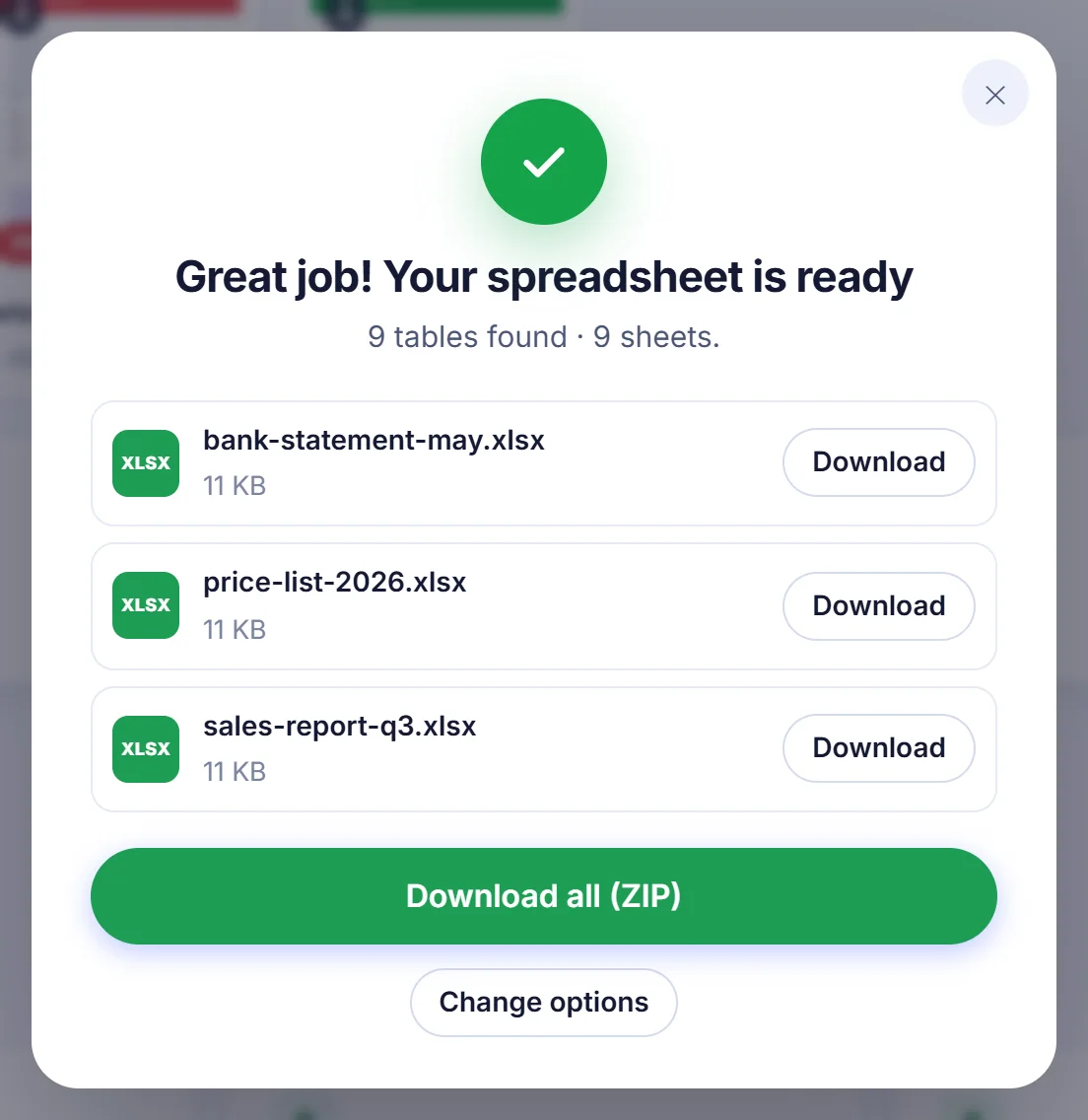
Add several PDFs together and each one becomes its own workbook, named after the original file, for example march-statement.xlsx. The page range you type is applied to every file, while the preview shows the first file only. When more than one file is produced, you can grab them all in a single ZIP. With CSV output, a workbook with several sheets turns into several CSV files, one per sheet.
Fixing the usual problems
Two columns ended up merged. This happens when the columns in the PDF almost touch. Split the column afterwards in Excel with Text to Columns.
Wrapped lines became separate rows. Make sure the option to join wrapped cells is on in the advanced settings. If it joins too much on your file, turn it off.
Your phone stops halfway. Large PDFs need memory, and phones have less of it. Convert a smaller page range at a time, or use a laptop.
The password prompt keeps coming back. The password was wrong. If you never had it, ask whoever sent the document.
Your data stays with you
Financial statements and payroll reports are exactly the kind of file you should not hand to a stranger. On this site the PDF is opened, analysed and turned into a spreadsheet by code running in your browser tab. There is no upload step and no copy waiting on a server. Close the tab and the file is gone from memory.
Frequently asked questions
How do I convert a PDF to Excel for free?
Add your PDF here, check the table in the preview, pick a sheet layout and press the convert button. There is no account to make and no watermark on the file.
Will the numbers in my PDF still work in formulas?
Yes. Amounts, currencies, percentages and dates are written as real values with a number format, so SUM, sorting and filters work. You can also turn this off to keep every cell as plain text.
Does it work with a scanned PDF or a photographed table?
Yes. Pages without a text layer are read with OCR in your browser. Pick the document language first; its data downloads once, the first time you use it.
How do I merge every page of a PDF into a single worksheet?
Choose the All in one sheet layout. Pages are stacked in order, and a table header that repeats the first one exactly is removed.
Can I convert a password-protected PDF to Excel?
Yes, if you know the password. You are asked for it when the file opens, and it never leaves your device.
Can I save the result as CSV instead of XLSX?
Yes. Choose CSV in the Save as menu to get one CSV file per sheet, or ODS for LibreOffice.